
API Tester: REST & JSON Client — Test REST APIs on Your Android Phone
A simple, lightweight HTTP client for Android. Send a request to any Web API or REST API from your phone or tablet and check the response in seconds — no laptop required.
The method, URL, and Send button stay pinned to the top of the screen, so a request is always one tap away. (Shown in the app as “Mobile API Tester”.)
Get on Google PlayWho It's For
- Developers who want to test APIs from a phone or tablet
- Engineers who need to check API behavior in meetings or while traveling
- Backend and REST API developers who want a quick way to hit an endpoint
- Anyone who wants to read JSON responses in a clean, formatted view
- People who find desktop API tools too heavy for a quick check
Key Features
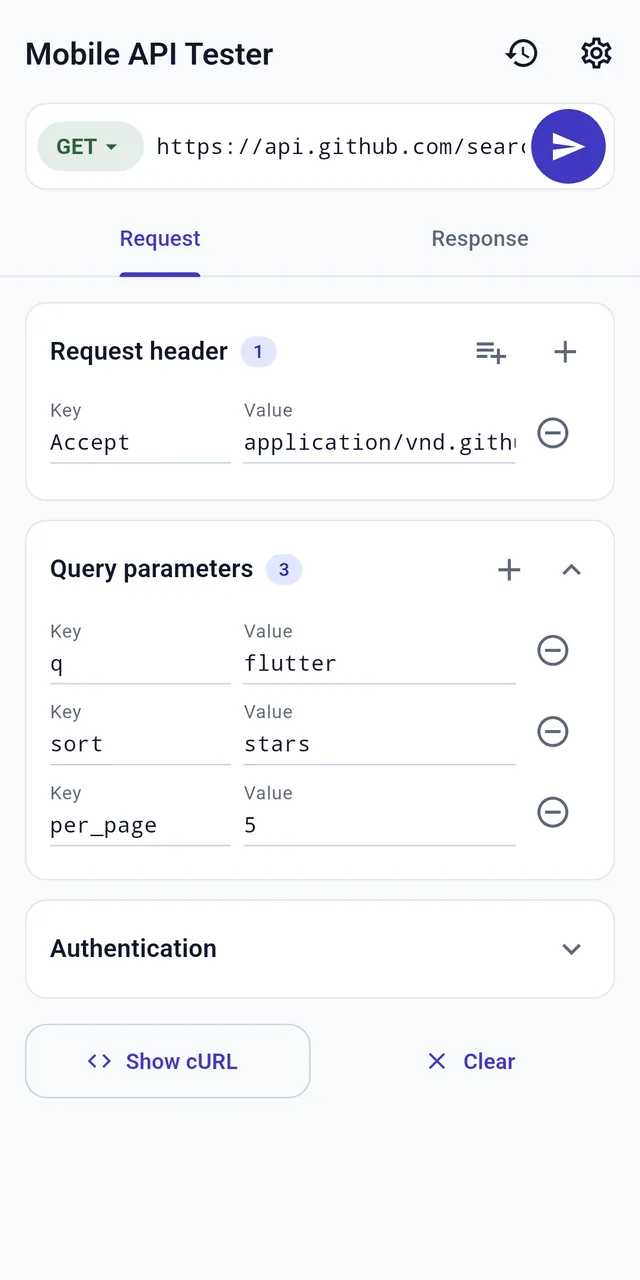
Build Requests with Every Common HTTP Method
Choose from GET, POST, PUT, PATCH, DELETE, HEAD, and OPTIONS. Query parameters have their own editor that stays in sync with the URL — edit either one and the other updates.
Add as many request headers as you need, with a header-type picker for common names. Authentication supports None, Basic, and Bearer, with a show/hide toggle for passwords and tokens.
Before sending, the app checks the URL and headers and flags problems such as full-width characters right in the input field.
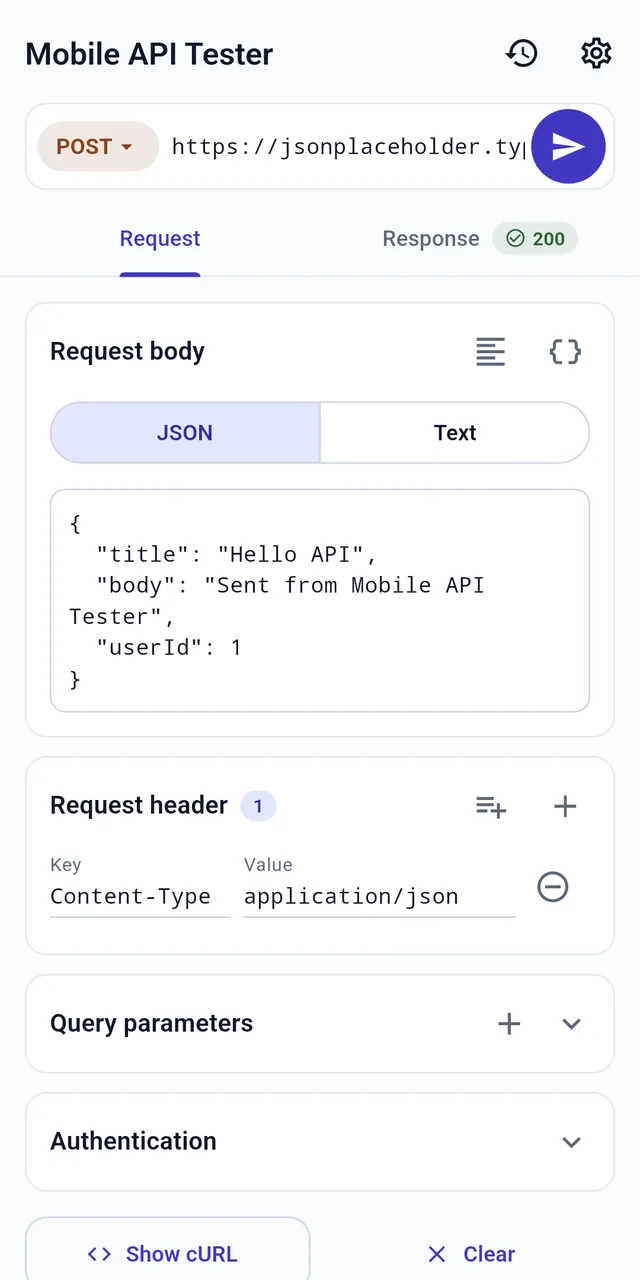
JSON Bodies with Formatting and a Live Syntax Check
Write the request body as JSON or plain text. The Format JSON button tidies it up, and the syntax check points out errors as you type — so you find the missing comma before the server does.
The Content-Type header is added automatically to match the body. If you set your own header, yours wins.
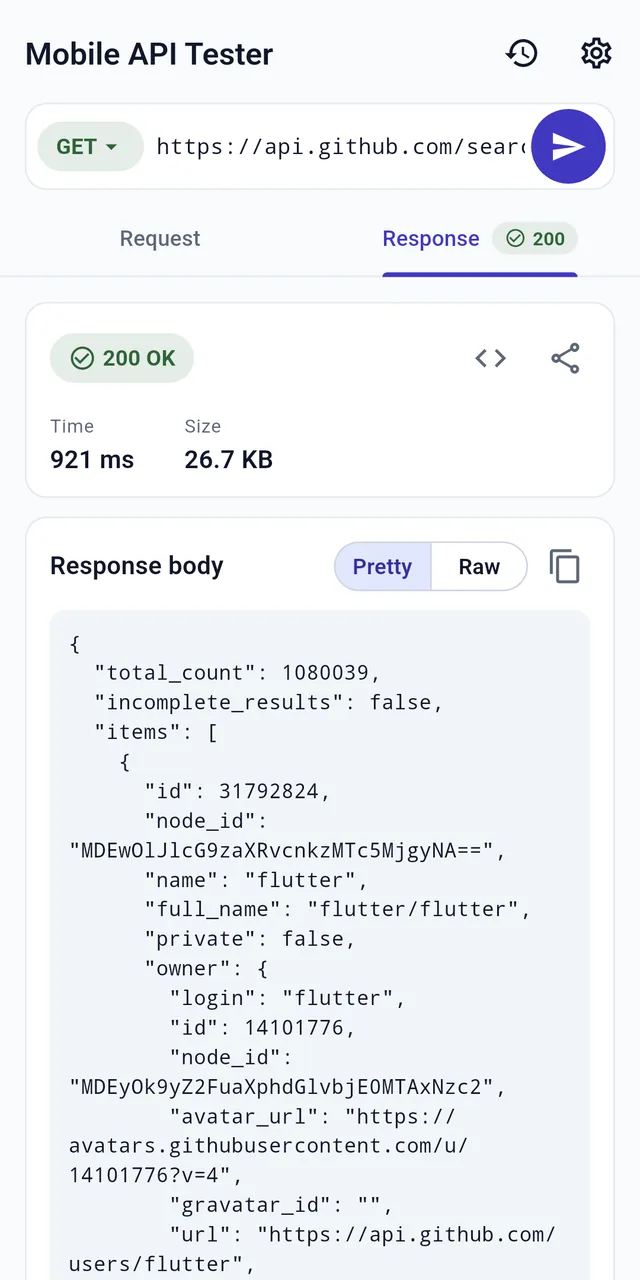
Readable Responses: Status, Time, Size, Pretty or Raw
The status is shown with a color and icon (✓ 2xx, ⚠ 4xx, ✕ 5xx), alongside the response time and size. Switch the body between a Pretty (formatted JSON) view and the Raw text, and open the response headers when you need them.
404 and 500 responses still show their body and headers, which is usually where the real error message is. Network errors are explained by type — timeout, connection failure, SSL certificate, invalid URL — with a Retry button, and you can cancel a request that is taking too long.
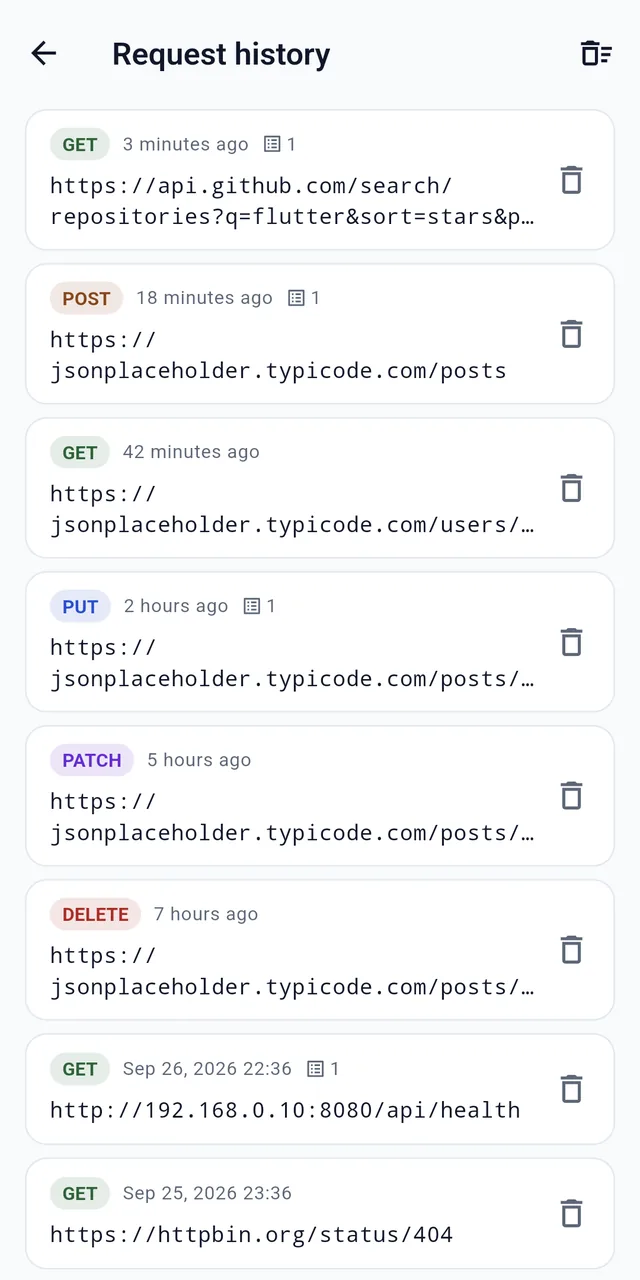
History, cURL Export, and Sharing
Every request you send is saved to history automatically (up to 100), shown as cards with color-coded methods and relative times like “5 minutes ago”. Tap one to load it again; swipe to delete, with Undo.
Show any request as a cURL command and copy it to reuse in a terminal or paste into a bug report. Responses and error details can be copied or sent to other apps from the share menu.
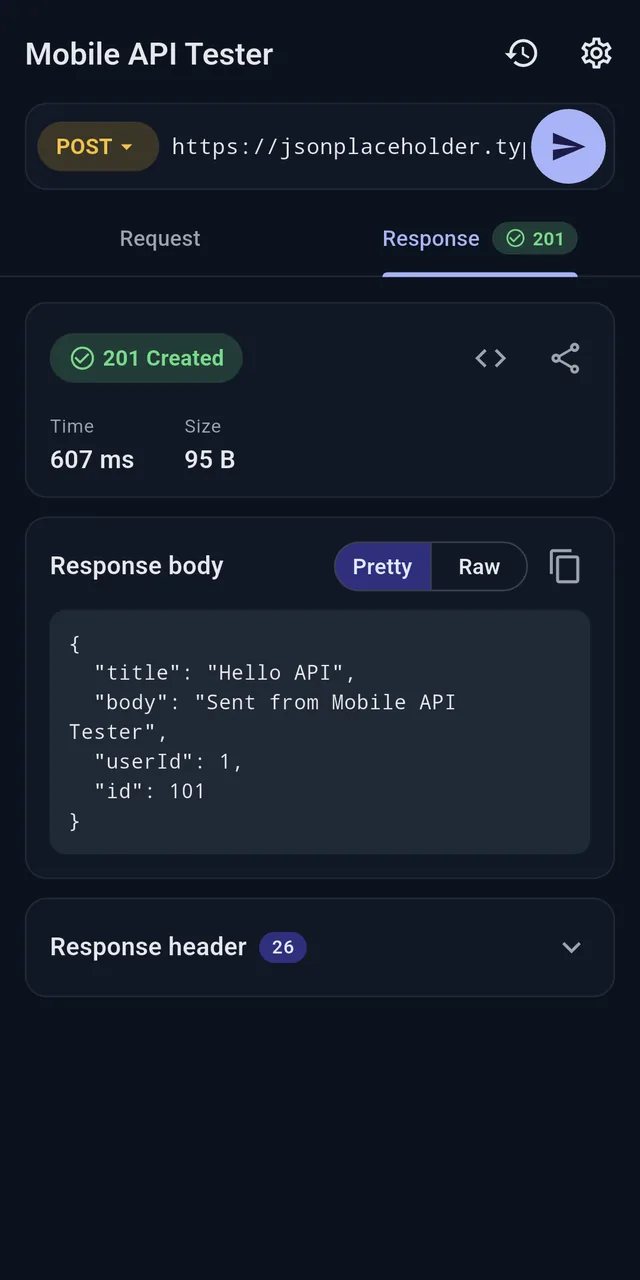
Works with Local Development Servers, in Light or Dark
Plain http:// URLs are allowed, so you can call a development server on your local network — for example a backend running on your PC — as long as your phone can reach it.
The theme can follow your system setting or be fixed to Light or Dark.
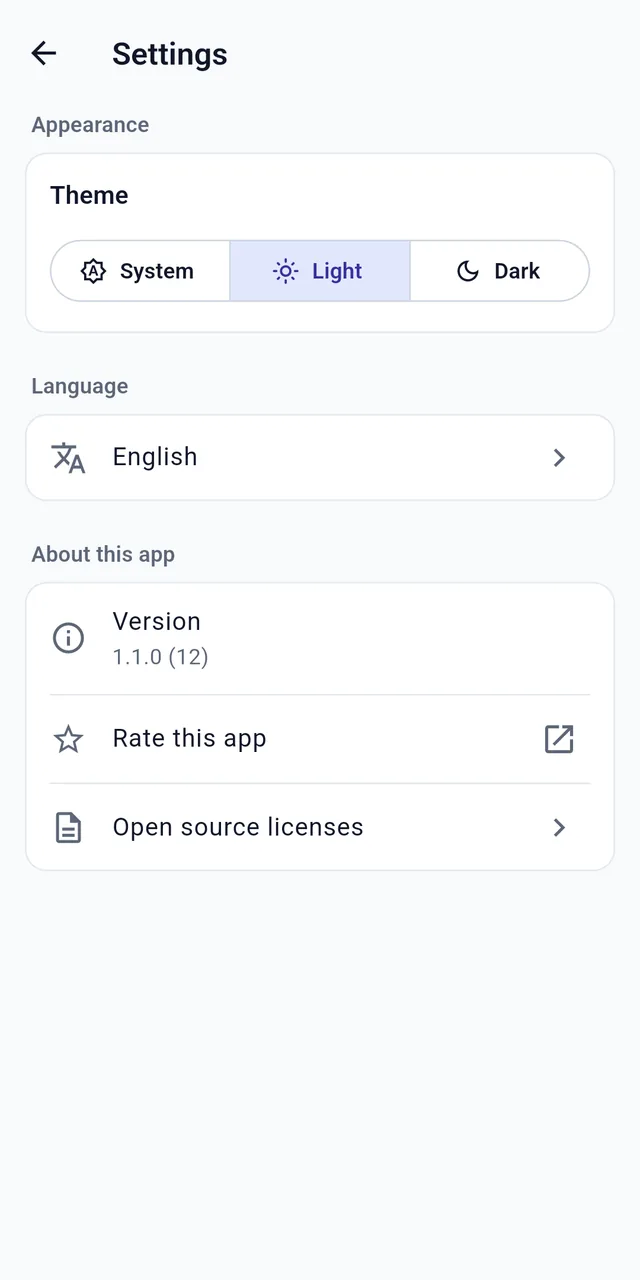
Seven Languages, Private by Design
The app is available in English, Japanese, Chinese (Simplified), Spanish, German, Russian, and Arabic, or can follow your device language.
History and settings are stored only on your device, and Basic credentials and Bearer tokens are never saved to history.
How to Use
- Install “API Tester: REST & JSON Client” from Google Play.
- Pick an HTTP method and enter the URL at the top of the screen.
- On the Request tab, add headers, query parameters, authentication, and a request body as needed.
- Tap the Send button. The Response tab shows the status, time, size, body, and headers.
- Open History to send the same request again, or use Show cURL to copy it as a command.
Frequently Asked Questions
Which HTTP methods are supported?
GET, POST, PUT, PATCH, DELETE, HEAD, and OPTIONS.
Can I call a server on my local network over http://?
Yes. http:// URLs such as a local development server are supported. Your phone needs to be able to reach the server, for example on the same Wi-Fi network.
Are my passwords and tokens saved?
No. Basic authentication credentials and Bearer tokens are never saved in history. History and settings are stored only on your device.
Are failed requests (4xx / 5xx) shown and saved?
Yes. Any request that receives a response is saved to history, including 4xx and 5xx responses, and their body and headers are shown just like a successful response.
Can I export a request as cURL?
Yes. Show cURL displays the request as a cURL command that you can copy.
Is it free?
Yes. The app is free and supported by a small banner ad at the bottom of the screen. There are no in-app purchases.
Need an API to Test Against?
ScenarioMock, also from ToolboxMApp, is a web service for building stateful mock APIs without writing code. Each mock gets a public HTTPS URL, so you can call it straight from API Tester — create a resource with POST, read it back with GET, or set up scenarios such as “return 500 on the third call” to check how your client handles errors before the real backend is ready.
Specifications
| Supported OS | Android (Google Play checks compatibility with your device automatically on the install screen) |
|---|---|
| Languages | English, Japanese, Chinese (Simplified), Spanish, German, Russian, Arabic |
| Price | Free (contains ads, no in-app purchases) |
Try API Tester
Hit the endpoint and see the response — right from your phone.
Get on Google Play 𝕏 Share